
Using MQTT in .NET: Implementation with MQTTnet and Mosquitto
I originally planned to continue writing the .NET query series for Elasticsearch, but after chatting with Claude, I felt that the approach used in the previous two posts was too mentally draining and started to feel a bit weary, so he suggested taking a break. Coincidentally, I noticed many job postings on 104 mentioning IoT/MQTT, so I decided to explore it. This post is mainly to change the mood; the content won't be too deep, although, in practice, it didn't feel much easier despite being shorter.
As for whether that year-end Elasticsearch query post will ever come out... well, it's just notes for myself, and nobody is likely waiting for it anyway, so if it doesn't get finished, it doesn't get finished.
Introduction
MQTT (Message Queuing Telemetry Transport) is a lightweight publish/subscribe messaging protocol, particularly suitable for communication in Internet of Things (IoT) devices. Due to its low bandwidth consumption and simple protocol design, it performs excellently in resource-constrained environments.
Basic MQTT Concepts
MQTT uses a publish/subscribe model and mainly includes the following roles:
- Broker: Responsible for receiving, filtering, and distributing messages to subscribers. It is the core of the entire system; all messages must pass through the Broker.
- Publisher: A client that publishes messages to a specific topic.
- Subscriber: A client that subscribes to a specific topic to receive messages.
- Topic: A classification label for messages, used to distinguish between different types of messages.
Workflow
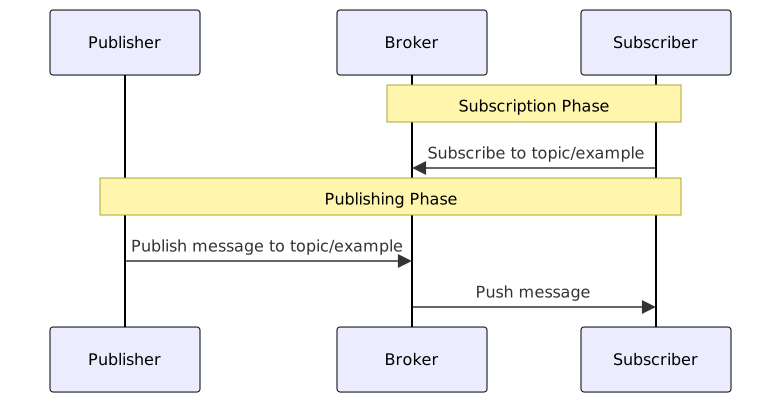
- Subscriber registers a subscription with the Broker: The Subscriber tells the Broker which topics it wants to receive messages from.
- Publisher publishes a message to the Broker: The Publisher sends a message to a specific topic on the Broker.
- Broker matches and distributes the message: The Broker checks which Subscribers have subscribed to that topic and pushes the message to them.
Topic
A Topic is a classification label for messages, using a hierarchical structure separated by slashes /, similar to paths in a file system.
Example:
home/living-room/temperature
home/living-room/humidity
home/bedroom/temperature
factory/production-line-1/machine-a/statusTopic Restrictions and Rules
- Hierarchy Separator: Use
/to separate different levels. - Case Sensitivity:
Home/Temperatureandhome/temperatureare different topics. - Length Limit: Theoretically up to 65,535 characters, but it is recommended to keep it under 100 characters in practice.
- Character Usage: Can contain UTF-8 characters, but it is recommended to use only alphanumeric characters, hyphens
-, and underscores_. - Null Character Forbidden: Cannot contain U+0000 (
\0). - Empty Topic: An empty string is not allowed as a topic.
- Slash Position: There should not be a slash at the beginning or end. Because
/home/temperature,home/temperature/, andhome/temperatureare treated as different topics (the slash represents an empty string level), which can easily cause subscription errors.
Special Characters:
+: Single-level wildcard (can only be used for subscription)#: Multi-level wildcard (can only be used for subscription)$: System topic prefix, reserved for the Broker (e.g.,$SYS/broker/clients/connected)
System Topics (starting with $)
Although the MQTT specification does not explicitly forbid applications from using topics starting with $, the industry has reached a consensus: topics starting with $ are reserved for the Broker to publish system information, and applications should not use these types of topics.
Common System Topics:
$SYS Topics
The Broker uses topics starting with $SYS to publish system statistics and status:
$SYS/broker/version                    # Broker version
$SYS/broker/clients/connected          # Number of currently connected clients
$SYS/broker/messages/received          # Total number of messages received
$SYS/broker/uptime # Broker uptimeThese topics can be used to monitor the health and performance metrics of the Broker.
$share Topics (MQTT 5.0)
MQTT 5.0 introduced the Shared Subscriptions feature, allowing multiple subscribers to receive messages from the same topic in a load-balanced manner. The format for shared subscription topics is:
$share/{ShareName}/{TopicFilter}Concept Explanation:
In the standard subscription model, all clients subscribed to the same topic receive every message for that topic (broadcast mode). However, in shared subscriptions, only one subscriber within the same ShareName group will receive the message, and the Broker will automatically distribute the load.
Example:
# Three subscribers join the same shared group
Subscriber A: $share/workers/task/queue
Subscriber B: $share/workers/task/queue
Subscriber C: $share/workers/task/queue

# When a message is published to task/queue:
# Message 1 → Received by Subscriber A
# Message 2 → Received by Subscriber B
# Message 3 → Received by Subscriber C
# Message 4 → Received by Subscriber A (round-robin distribution)Use Cases:
- Work Queues: Multiple workers processing the same task queue.
- Load Balancing: Distributing a large volume of messages across multiple processing nodes.
- Horizontal Scaling: Increasing the number of subscribers to improve processing capacity.
Relationship between Wildcards and $ Topics:
Wildcards # and + do not match topics starting with $:
Subscribing to # will not receive messages starting with $SYS/
Subscribing to +/monitor will not receive messages for $SYS/monitor
To subscribe to system topics, you must specify them explicitly: $SYS/#Naming Suggestions
- Use a Hierarchical Structure: From general to specific, e.g.,
Region/Building/Floor/Room/Device/DataType. - Maintain Consistency: Use lowercase English consistently, and separate words with hyphens
-. - Avoid Overly Deep Hierarchies: It is recommended to keep it within 3-5 levels; too deep makes it difficult to manage.
- Semantic Naming: Make the topic name clearly express its purpose, e.g.,
device/sensor-001/temperatureis easier to understand thand/s1/t.
Using Wildcards
Subscribers can use wildcards when subscribing to match multiple topics:
+ Single-level wildcard: Matches any content at a single level.
Subscribe: home/+/temperature
Matches: home/living-room/temperature
Matches: home/bedroom/temperature
Does not match: home/bedroom/sensor/temperature (one level too deep)# Multi-level wildcard: Matches the current level and all levels below it (must be at the end of the topic).
Subscribe: home/living-room/#
Matches: home/living-room/temperature
Matches: home/living-room/light/status
Matches: home/living-room/sensor/temperature/currentImportant: Wildcards can only be used for subscription, not for publishing. The Publisher must specify an explicit topic name.
QoS (Quality of Service Levels)
MQTT provides three QoS levels to control the reliability of message delivery. It is important to note that MQTT message delivery is divided into two segments, and each segment can specify a QoS:
- Publish QoS: Reliability of delivery from Publisher to Broker.
- Subscribe QoS: The upper limit of reliability for delivery from Broker to Subscriber.
The actual QoS received by the Subscriber = min(Publish QoS, Subscribe QoS)
Publisher --[Publish QoS]--> Broker --[Subscribe QoS]--> Subscriber
                                        |
Uses the lower QoS in practiceQoS Level Explanation
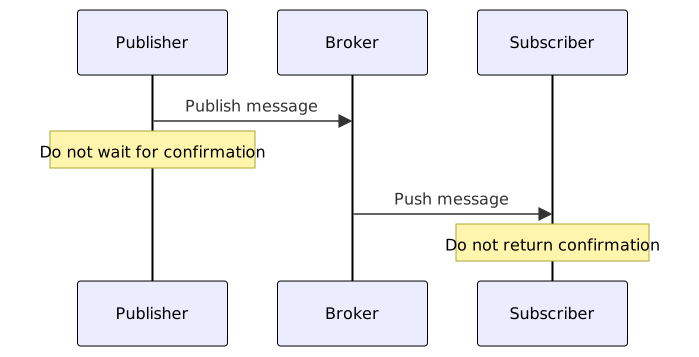
QoS 0: At most once
- Characteristics: Send and forget; no confirmation of delivery.
- Use Case: Situations where real-time performance is prioritized but data loss is tolerable, e.g., a temperature sensor updating every second; losing one occasionally doesn't affect the overall picture.
- Pros: Best performance, minimal network overhead.
- Cons: Messages may be lost.
QoS 1: At least once
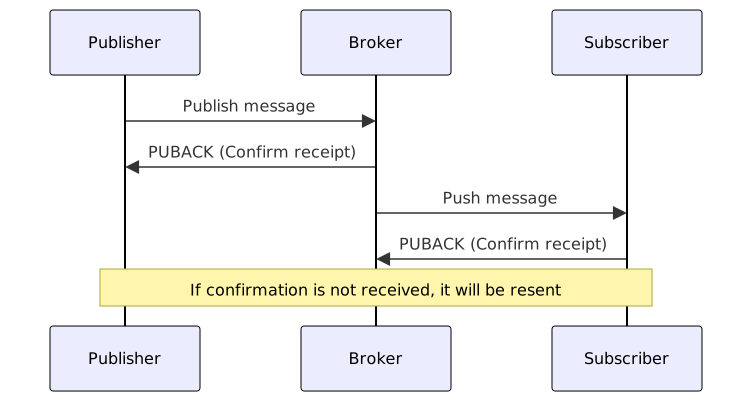
- Characteristics: Wait for confirmation (PUBACK: Publish Acknowledgement) from the receiver after sending; if no confirmation is received, the message is resent.
- Use Case: Situations where it is necessary to ensure the message is delivered, but duplicate messages are tolerable, e.g., switch control commands.
- Pros: Ensures message delivery.
- Cons: May receive duplicate messages (if the PUBACK is lost, it will be resent).
QoS 2: Exactly once
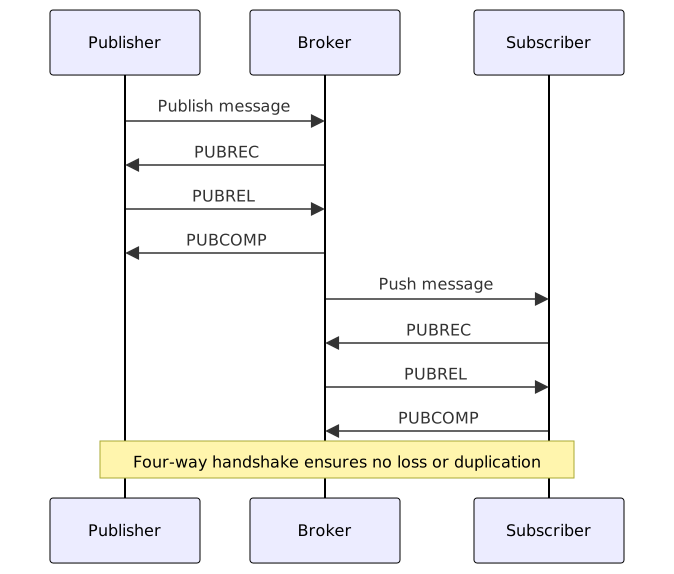
- Characteristics: Uses a four-way handshake mechanism to ensure messages are neither lost nor duplicated. The handshake process includes:
- PUBREC (Publish Received): Receiver confirms receipt of the published message.
- PUBREL (Publish Release): Sender indicates it is ready to complete delivery.
- PUBCOMP (Publish Complete): Receiver confirms the message has been fully processed.
- Use Case: Situations requiring extremely high data accuracy, e.g., financial transactions, billing systems.
- Pros: Guarantees message delivery without duplication.
- Cons: Worst performance, highest network overhead.
Relationship between Publish QoS and Subscribe QoS
When the publisher and subscriber set different QoS levels, the actual QoS used is the smaller of the two:
| Publish QoS | Subscribe QoS | Actual QoS received by Subscriber |
|---|---|---|
| 0 | 0 | 0 |
| 0 | 1 | 0 |
| 0 | 2 | 0 |
| 1 | 0 | 0 |
| 1 | 1 | 1 |
| 1 | 2 | 1 |
| 2 | 0 | 0 |
| 2 | 1 | 1 |
| 2 | 2 | 2 |
Example Explanation:
Suppose a Publisher publishes a message to the sensor/temperature topic with QoS 2:
- Subscriber A subscribes with QoS 2 → Received message is QoS 2 (min(2, 2) = 2).
- Subscriber B subscribes with QoS 1 → Received message is QoS 1 (min(2, 1) = 1).
- Subscriber C subscribes with QoS 0 → Received message is QoS 0 (min(2, 0) = 0).
This design allows different subscribers to choose the appropriate QoS based on their needs, achieving a balance between flexibility and performance.
QoS Level Selection Suggestions
| Scenario | Recommended QoS | Reason |
|---|---|---|
| Environmental sensor data (temperature, humidity) | QoS 0 | Data updates frequently; occasional loss is acceptable |
| Switch control commands | QoS 1 | Must ensure delivery; can handle duplicates |
| Important alert notifications | QoS 1 or 2 | Must ensure delivery |
| Financial transactions, billing | QoS 2 | Must never be lost or duplicated |
Setting up Mosquitto with Docker Compose
Project Structure
Create the project folder structure as follows:
mosquitto/
│
├── docker-compose.yml
├── volumes/
│   ├── config/
│   │   ├── mosquitto.conf
│   │   └── entrypoint.sh
│   ├── data/
│ └── log/docker-compose.yml Configuration
services:
  mosquitto:
    image: eclipse-mosquitto:2
    container_name: mosquitto
    restart: always
    ports:
      - "1883:1883"     # MQTT TCP
      - "9001:9001"     # MQTT WebSocket
    volumes:
      - ./volumes/config:/mosquitto/config
      - ./volumes/data:/mosquitto/data
      - ./volumes/log:/mosquitto/log
entrypoint: ["/mosquitto/config/entrypoint.sh"]Mosquitto Configuration File
Create the configuration file at config/mosquitto.conf:
# ---------- TCP Listener ----------
# Use 1883 for development; TLS 8883 is recommended for production
listener 1883
protocol mqtt

# ---------- WebSocket Listener ----------
# Provides MQTT over WebSocket for browsers or front-ends
listener 9001
protocol websockets

# ---------- Authentication ----------
# Disable anonymous connections, use password.txt to manage accounts
allow_anonymous false
password_file /mosquitto/config/password.txt

# ---------- Persistence ----------
# Store messages, Retain, and QoS 1/2 sessions on disk
persistence true
persistence_location /mosquitto/data/

# ---------- Logging ----------
# Output to file
log_dest file /mosquitto/log/mosquitto.log
# Output to stdout (container log)
log_dest stdout
# Log message types
# For development: log_type all → logs debug / notice / warning / error
# For production: log_type error warning notice → avoid debug messages
log_type all

# ---------- Security ----------
# When enabling TLS, the following certificates must be provided
# cafile /mosquitto/config/ca.crt
# certfile /mosquitto/config/server.crt
# keyfile /mosquitto/config/server.keyTIP
The certificate configuration part has not been tested in practice, and there may be other details to pay attention to (such as certificate format, path permissions, etc.). It is recommended to refer to the official Mosquitto TLS documentation before using it in a production environment.
Startup Script
Create the script file at config/entrypoint.sh:
#!/bin/sh
set -e

echo "[ENTRYPOINT] Start entrypoint.sh"

# ---------- Check /mosquitto/config/password.txt ----------
echo "[STEP] Checking if password.txt exists..."
if [ ! -f /mosquitto/config/password.txt ]; then
    echo "[STEP] password.txt not found, generating default user..."
    mosquitto_passwd -b -c /mosquitto/config/password.txt myuser mypassword
    echo "[STEP] Generated default user."
else
    echo "[STEP] password.txt already exists, skip generation."
fi

# ---------- Fix folder permissions ----------
# Mosquitto container runs with UID 1883
# Need to change directory ownership to 1883 to ensure Mosquitto can read/write normally
echo "[STEP] Setting ownership for config, log, data folders..."
chown -R 1883:1883 /mosquitto/config /mosquitto/log /mosquitto/data

# ---------- Start Mosquitto ----------
echo "[STEP] Starting Mosquitto..."
exec mosquitto -c /mosquitto/config/mosquitto.confStart Mosquitto
Execute in the directory where docker-compose.yml is located:
# To ensure sh has execution permissions
chmod -R 755 ./volumes/config/entrypoint.sh

docker-compose up -dView the logs:
docker-compose logs -f mosquittoYou should see the following messages:
mosquitto  | [ENTRYPOINT] Start entrypoint.sh
mosquitto  | [STEP] Checking if password.txt exists...
mosquitto  | [STEP] password.txt not found, generating default user...
mosquitto  | [STEP] Generated default user.
mosquitto  | [STEP] Setting ownership for config, log, data folders...
mosquitto | [STEP] Starting Mosquitto...At this point, a password.txt file will be generated under config, containing the default user account and the encrypted password.
Using the MQTTnet Package in .NET
Versions Used
- .NET 10
- MQTTnet 5.0.1.1416
Basic Example: Publish and Subscribe
This example demonstrates the basic MQTT operation flow, including establishing a connection, subscribing to a topic, publishing a message, and receiving a message.
using System.Text;
using MQTTnet;
using MQTTnet.Protocol;

string brokerAddress = "localhost";
int brokerPort = 1883;

Console.WriteLine("========================================");
Console.WriteLine("    MQTT Publish/Subscribe Example");
Console.WriteLine("========================================\n");

Console.WriteLine("【Step 1】Create Subscriber");
Console.WriteLine("----------------------------------------");

MqttClientOptions subscriberOptions = CreateClientOptions("Subscriber");
using IMqttClient subscriberClient = await CreateClientAsync(subscriberOptions);

await SubscribeAsync(subscriberClient, "test/topic");

Console.WriteLine("\n");
await Task.Delay(500);  // Wait a bit to make the output clearer

Console.WriteLine("【Step 2】Create Publisher");
Console.WriteLine("----------------------------------------");

MqttClientOptions publisherOptions = CreateClientOptions("Publisher");
using IMqttClient publisherClient = await CreateClientAsync(publisherOptions);

Console.WriteLine("\n");
await Task.Delay(500);

Console.WriteLine("【Step 3】Publish Message");
Console.WriteLine("----------------------------------------");

await PublishMessageAsync(publisherClient, "test/topic", "Hello, MQTT!");
await Task.Delay(200);

await PublishMessageAsync(publisherClient, "test/topic", "This is the second message");
await Task.Delay(200);

Console.WriteLine("\n");

Console.WriteLine("【Step 4】Wait for Message Reception");
Console.WriteLine("----------------------------------------");
await Task.Delay(500);  // Ensure messages are received

Console.WriteLine("\n");
Console.WriteLine("========================================");
Console.WriteLine("Press any key to unsubscribe and end the program...");
Console.WriteLine("========================================");
Console.ReadKey();

Console.WriteLine("\n【Step 5】Clean up resources");
Console.WriteLine("----------------------------------------");

await UnsubscribeAsync(subscriberClient, "test/topic");
await subscriberClient.DisconnectAsync();
await publisherClient.DisconnectAsync();

Console.WriteLine("Program ended");

MqttClientOptions CreateClientOptions(string clientId) {
    return new MqttClientOptionsBuilder()
        .WithTcpServer(brokerAddress, brokerPort)
        .WithCredentials("myuser", "mypassword")
        .WithClientId(clientId) // If not set, Guid.NewGuid().ToString("N") will be used as ID
        .Build();
}

async Task<IMqttClient> CreateClientAsync(MqttClientOptions options) {
    MqttClientFactory factory = new();
    IMqttClient client = factory.CreateMqttClient();
    client.ApplicationMessageReceivedAsync += OnMessageReceivedAsync;

    await client.ConnectAsync(options, CancellationToken.None);
    Console.WriteLine($"{options.ClientId} connected to Broker");

    return client;
}

Task OnMessageReceivedAsync(MqttApplicationMessageReceivedEventArgs e) {
    string payload = Encoding.UTF8.GetString(e.ApplicationMessage.Payload);
    Console.WriteLine($"[{e.ClientId}] Message received");
    Console.WriteLine($"   Topic: {e.ApplicationMessage.Topic}");
    Console.WriteLine($"   Content: {payload}");
    return Task.CompletedTask;
}

async Task SubscribeAsync(IMqttClient client, string topic) {
    MqttClientSubscribeOptions subscribeOptions = new MqttClientSubscribeOptionsBuilder()
        .WithTopicFilter(filter => {
            filter.WithTopic(topic);
            filter.WithQualityOfServiceLevel(MqttQualityOfServiceLevel.ExactlyOnce);
        })
        .Build();

    await client.SubscribeAsync(subscribeOptions, CancellationToken.None);
    Console.WriteLine($"Subscribed to topic: {topic}");
}

async Task UnsubscribeAsync(IMqttClient client, string topic) {
    MqttClientUnsubscribeOptions unsubscribeOptions = new MqttClientUnsubscribeOptionsBuilder()
        .WithTopicFilter(topic)
        .Build();

    await client.UnsubscribeAsync(unsubscribeOptions, CancellationToken.None);
    Console.WriteLine($"Unsubscribed from topic: {topic}");
}

async Task PublishMessageAsync(IMqttClient client, string topic, string payload) {
    MqttApplicationMessage message = new MqttApplicationMessageBuilder()
        .WithTopic(topic)
        .WithPayload(payload)
        .WithQualityOfServiceLevel(MqttQualityOfServiceLevel.ExactlyOnce)
        .Build();

    await client.PublishAsync(message, CancellationToken.None);
    Console.WriteLine($"[{client.Options.ClientId}] Message published");
    Console.WriteLine($"   Topic: {topic}");
    Console.WriteLine($"   Content: {payload}");
}Execution Result:
========================================
    MQTT Publish/Subscribe Example
========================================

【Step 1】Create Subscriber
----------------------------------------
Subscriber connected to Broker
Subscribed to topic: test/topic


【Step 2】Create Publisher
----------------------------------------
Publisher connected to Broker


【Step 3】Publish Message
----------------------------------------
[Publisher] Message published
   Topic: test/topic
   Content: Hello, MQTT!
[Subscriber] Message received
   Topic: test/topic
   Content: Hello, MQTT!
[Publisher] Message published
   Topic: test/topic
   Content: This is the second message
[Subscriber] Message received
   Topic: test/topic
   Content: This is the second message


【Step 4】Wait for Message Reception
----------------------------------------


========================================
Press any key to unsubscribe and end the program...
========================================

【Step 5】Clean up resources
----------------------------------------
Unsubscribed from topic: test/topic
Program endedAdvanced Example: IoT Temperature Sensor Simulation
This example simulates an IoT scenario, including a sensor periodically sending data and a monitoring system receiving and processing the data. It uses CancellationToken to gracefully stop background tasks.
using System.Text;
using System.Text.Json;
using MQTTnet;

string brokerAddress = "localhost";
int brokerPort = 1883;

Console.WriteLine("========================================");
Console.WriteLine("       IoT Temperature Sensor Simulation");
Console.WriteLine("========================================\n");

// Create Publisher (Sensor)
using IMqttClient sensorClient = await CreateClientAsync("Sensor-001");

// Create Subscriber (Monitoring System)
using IMqttClient monitorClient = await CreateClientAsync("Monitor-001");

// Monitoring system subscribes to messages
monitorClient.ApplicationMessageReceivedAsync += e => {
    string json = Encoding.UTF8.GetString(e.ApplicationMessage.Payload);
    SensorRecord? data = JsonSerializer.Deserialize<SensorRecord>(json);

    if (data is not null) {
        Console.WriteLine("[Monitoring System] Sensor data received");
        Console.WriteLine($"   Device ID: {data.DeviceId}");
        Console.WriteLine($"   Temperature: {data.Temperature:F1}°C");
        Console.WriteLine($"   Humidity: {data.Humidity:F1}%");
        Console.WriteLine($"   Time: {data.Timestamp:yyyy-MM-dd HH:mm:ss}\n");

        // Alert check
        if (data.Temperature > 30D) {
            Console.ForegroundColor = ConsoleColor.Red;
            Console.WriteLine("Warning: Temperature too high!\n");
            Console.ResetColor();
        }
    }

    return Task.CompletedTask;
};

Console.WriteLine("Starting system...");
await monitorClient.SubscribeAsync("sensor/temperature");
Console.WriteLine("System started\n");

// Simulate sensor sending data every 2 seconds
Console.WriteLine("Starting sensor data simulation (press any key to stop)...");
Console.WriteLine("----------------------------------------\n");

Random random = new();
CancellationTokenSource cts = new();

Task sensorTask = Task.Run(async () => {
    while (!cts.Token.IsCancellationRequested) {
        // Generate simulated data
        SensorRecord data = new(
            DeviceId: "Sensor-001",
            Temperature: 20D + random.NextDouble() * 15D,  // 20-35°C
            Humidity: 40D + random.NextDouble() * 30D,      // 40-70%
            Timestamp: DateTime.Now
        );

        string json = JsonSerializer.Serialize(data);

        MqttApplicationMessage message = new MqttApplicationMessageBuilder()
            .WithTopic("sensor/temperature")
            .WithPayload(json)
            .Build();

        await sensorClient.PublishAsync(message);
        Console.WriteLine($"[Sensor] Data sent");

        await Task.Delay(2000, cts.Token);  // Every 2 seconds
    }
}, cts.Token);

Console.ReadKey();
cts.Cancel();

try {
    await sensorTask;
} catch (TaskCanceledException) {
    // This exception is thrown when Task.Delay is interrupted by CancellationToken
    // This is expected behavior and does not need extra handling
}

await sensorClient.DisconnectAsync();
await monitorClient.DisconnectAsync();

Console.WriteLine("\nSystem shut down");

async Task<IMqttClient> CreateClientAsync(string clientName) {
    MqttClientFactory factory = new();
    IMqttClient client = factory.CreateMqttClient();

    MqttClientOptions options = new MqttClientOptionsBuilder()
        .WithTcpServer(brokerAddress, brokerPort)
        .WithCredentials("myuser", "mypassword")
        .Build();

    await client.ConnectAsync(options, CancellationToken.None);
    Console.WriteLine($"{clientName} connected to Broker");

    return client;
}

record SensorRecord(string DeviceId, double Temperature, double Humidity, DateTime Timestamp);Execution Result:
========================================
       IoT Temperature Sensor Simulation
========================================

Sensor-001 connected to Broker
Monitor-001 connected to Broker
Starting system...
System started

Starting sensor data simulation (press any key to stop)...
----------------------------------------

[Sensor] Data sent
[Monitoring System] Sensor data received
   Device ID: Sensor-001
   Temperature: 31.9°C
   Humidity: 43.8%
   Time: 2025-11-15 23:51:22

Warning: Temperature too high!

[Sensor] Data sent
[Monitoring System] Sensor data received
   Device ID: Sensor-001
   Temperature: 21.9°C
   Humidity: 65.7%
   Time: 2025-11-15 23:51:24


System shut downAdvanced Features
Last Will and Testament
When a client disconnects abnormally, the Broker automatically publishes a "Last Will" message to notify other clients that the device has gone offline.
Calling DisconnectAsync() normally will not send a Last Will message; it is only triggered in situations such as network interruption, program crashes, or abnormal disconnections.
The following example sets a Last Will message: when client-001 disconnects abnormally, the Broker will automatically publish an offline message to the status/client-001 topic.
MqttClientFactory factory = new();
IMqttClient client = factory.CreateMqttClient();

MqttClientOptions options = new MqttClientOptionsBuilder()
    .WithTcpServer(brokerAddress, brokerPort)
    .WithCredentials("myuser", "mypassword")
    .WithClientId("client-001")
    .WithWillTopic("status/client-001")
    .WithWillPayload("offline")
    .WithWillQualityOfServiceLevel(MqttQualityOfServiceLevel.AtLeastOnce)
    .WithWillRetain(true)
    .Build();

await client.ConnectAsync(options, CancellationToken.None);Testing Method: You can write a simple Console program to compare the differences between the following two situations:
- The code calls
DisconnectAsync()before ending → No Last Will message is sent. - The code ends without calling
DisconnectAsync()→ A Last Will message is sent.
Use Case:
- Device abnormal disconnection detection: Automatically notify the monitoring system when a device disconnects due to abnormal reasons such as network interruption or program crashes.
Retained Message
After setting the retain flag, the Broker will store the last message for that topic. New subscribers will immediately receive the last retained message upon connecting, without needing to wait for the next publication.
MqttApplicationMessage message = new MqttApplicationMessageBuilder()
    .WithTopic("sensor/temperature")
    .WithPayload("25.5")
    .WithRetainFlag(true)
    .Build();

await client.PublishAsync(message);Use Case:
Retained messages are suitable for scenarios where "only the latest data is needed" and are not suitable for historical records or scenarios requiring a complete sequence of data, e.g.:
- Device Status: Store the latest status of a device (e.g., on/off, online/offline).
- Configuration Information: Store system settings so that new devices immediately obtain the settings upon connection.
- Latest Readings: Store the latest readings from a sensor.
Clean Session
MQTT 3.1.1: Clean Session
In MQTT 3.1.1, clients can set the Clean Session flag when connecting:
Clean Session = true (default):
- Clears the previous session upon connection.
- After disconnection, the Broker deletes all subscription information and unsent messages for that client.
- Requires re-subscription upon reconnection and will not receive messages from the offline period.
Clean Session = false (persistent session):
- Retains the previous session upon connection.
- After disconnection, the Broker retains the client's subscription information.
- QoS 1 and QoS 2 messages published to subscribed topics during the offline period will be retained by the Broker.
- Automatically restores subscriptions upon reconnection and receives messages accumulated during the offline period.
MQTT 5.0: Clean Start + Session Expiry Interval
In MQTT 5.0, Clean Session is split into two independent settings:
Clean Start: Determines whether to use an existing session upon connection:
true: Clears the existing session and creates a new one.false: Attempts to use an existing session (if it exists).
Session Expiry Interval: Sets how long the session is retained after disconnection (unit: seconds):
0: Deletes the session immediately after disconnection (default value).> 0: Retains the session for the specified number of seconds.- 4294967295 (
uint.MaxValue): The session never expires.
Correspondence between MQTT 3.1.1 and MQTT 5.0:
| MQTT 3.1.1 | MQTT 5.0 Equivalent Setting |
|---|---|
| Clean Session = true | Clean Start = true + Session Expiry Interval = 0 |
| Clean Session = false | Clean Start = false + No Session Expiry Interval set |
WARNING
According to the MQTT 5.0 specification:
Setting Clean Start to 1 and a Session Expiry Interval of 0, is equivalent to setting CleanSession to 1 in the MQTT Specification Version 3.1.1. Setting Clean Start to 0 and no Session Expiry Interval, is equivalent to setting CleanSession to 0 in the MQTT Specification Version 3.1.1.
However, in practice, I am not sure if it is because MQTTnet defaults SessionExpiryInterval to 0 or if it is a Mosquitto implementation issue, but if WithSessionExpiryInterval() is not set, the session cannot be retained.
MQTTnet Implementation
In MQTTnet, WithCleanSession() and WithCleanStart() are the same:
/// <summary>
///     Clean session is used in MQTT versions below 5.0.0. It is the same as setting "CleanStart".
/// </summary>
public MqttClientOptionsBuilder WithCleanSession(bool value = true) {
    _options.CleanSession = value;
    return this;
}

/// <summary>
///     Clean start is used in MQTT versions 5.0.0 and higher. It is the same as setting "CleanSession".
/// </summary>
public MqttClientOptionsBuilder WithCleanStart(bool value = true) {
    _options.CleanSession = value;
    return this;
}Usage Example
MQTT 3.1.1 Specification (Simple):
MqttClientOptions options = new MqttClientOptionsBuilder()
    .WithTcpServer(brokerAddress, brokerPort)
    .WithCredentials("myuser", "mypassword")
    .WithClientId("client-001")  // Fixed ClientId
    .WithCleanSession(false)     // Use persistent session
    .Build();

await client.ConnectAsync(options);

// Use QoS 1 or 2 when subscribing
await client.SubscribeAsync(new MqttTopicFilterBuilder()
    .WithTopic("test/topic")
    .WithQualityOfServiceLevel(MqttQualityOfServiceLevel.AtLeastOnce)
.Build());MQTT 5.0 Specification (Explicit control of expiration time):
MqttClientOptions options = new MqttClientOptionsBuilder()
    .WithTcpServer(brokerAddress, brokerPort)
    .WithCredentials("myuser", "mypassword")
    .WithClientId("client-001")         // Fixed ClientId
    .WithCleanStart(false)              // Attempt to use existing session
    .WithSessionExpiryInterval(600)     // Session retained for 600 seconds (10 minutes) after disconnection; default is 0, so it must be set
    .Build();

await client.ConnectAsync(options);Reference Resources
- MQTT Official Website
- MQTT Version 5.0 Specification
- Eclipse Mosquitto Official Documentation
- MQTTnet GitHub Repository
Change Log
- 2025-11-15 Initial document created.