
How to continue browsing websites with insecure SSL certificates
I often forget the thisisunsafe command, so I am writing this note.
Reasons for insecure SSL certificates
When you see an SSL security warning in your browser, it is usually due to the following reasons:
- The SSL certificate is self-signed, not issued by a trusted Certificate Authority (CA).
- The SSL certificate has expired.
- The certificate does not match the website's domain name.
- Your browser does not trust the organization that issued the certificate.
- The certificate is a test certificate used in an internal development environment.
These warnings are the browser's security mechanism to alert you that the current connection may not be secure.
How to bypass SSL warnings in Chrome
Standard scenario
Normally, when you encounter a website that the browser considers insecure due to SSL, you can click "Advanced" and proceed, as shown in the image below:
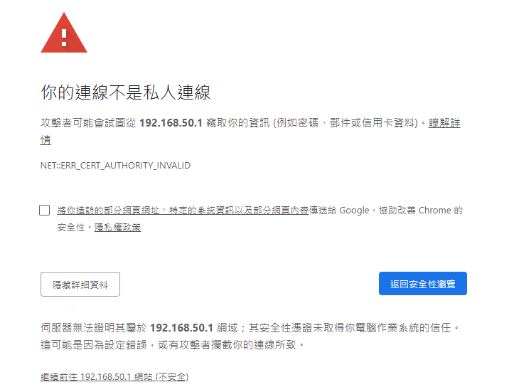
Steps:
- Click the "Advanced" option.
- Click the "Proceed to [website] (unsafe)" link.
- The browser will take you to the target website.
Special scenario (No proceed option)
Sometimes you may encounter a situation where there is no option to proceed, as shown below:
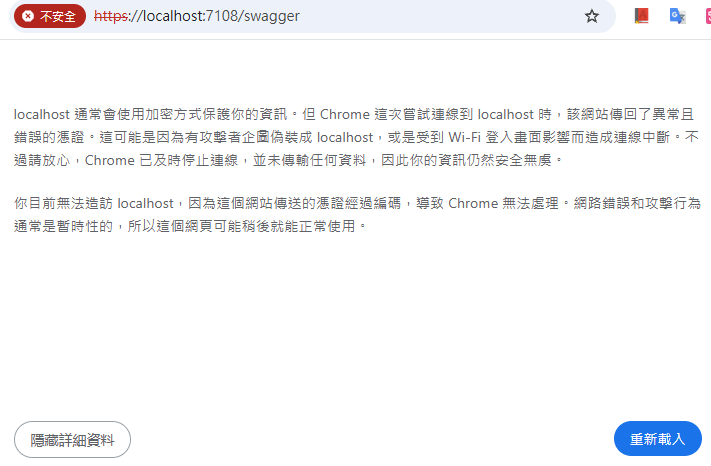
In this case, click on the Chrome browser window to ensure it is in focus, and then:
- Type
thisisunsafedirectly on your keyboard (you do not need to type it into any input field). - You will not see any input traces, but once you finish typing, the page will automatically redirect to the actual website.
Note: This method is a hidden feature and is only recommended for use when you are certain that the website is safe, such as in an internal development or testing environment.
Change Log
- 2025-03-23 Initial version created.