
A Simple Test of Using WhisperDesktop for Speech-to-Text
WARNING
This is a previous test record. Although WhisperDesktop is still functional, the developer has not updated it for a long time. I have now switched to Subtitle Edit integrated with Faster-Whisper, which is more actively maintained and faster. It is recommended to refer directly to the new article: Using Subtitle Edit with Faster-Whisper for Local Speech-to-Text.
While looking into ChatRTX some time ago, I came across the term Whisper. After some research, I discovered that OpenAI Whisper is a speech transcription and translation AI model released by OpenAI in September 2022. For more information, you can refer to the article What is OpenAI Whisper?.
For an AI beginner like me, setting up an environment to run this model from scratch is a bit difficult. However, someone has developed an offline tool that can be used directly: WhisperDesktop.
Download and Installation
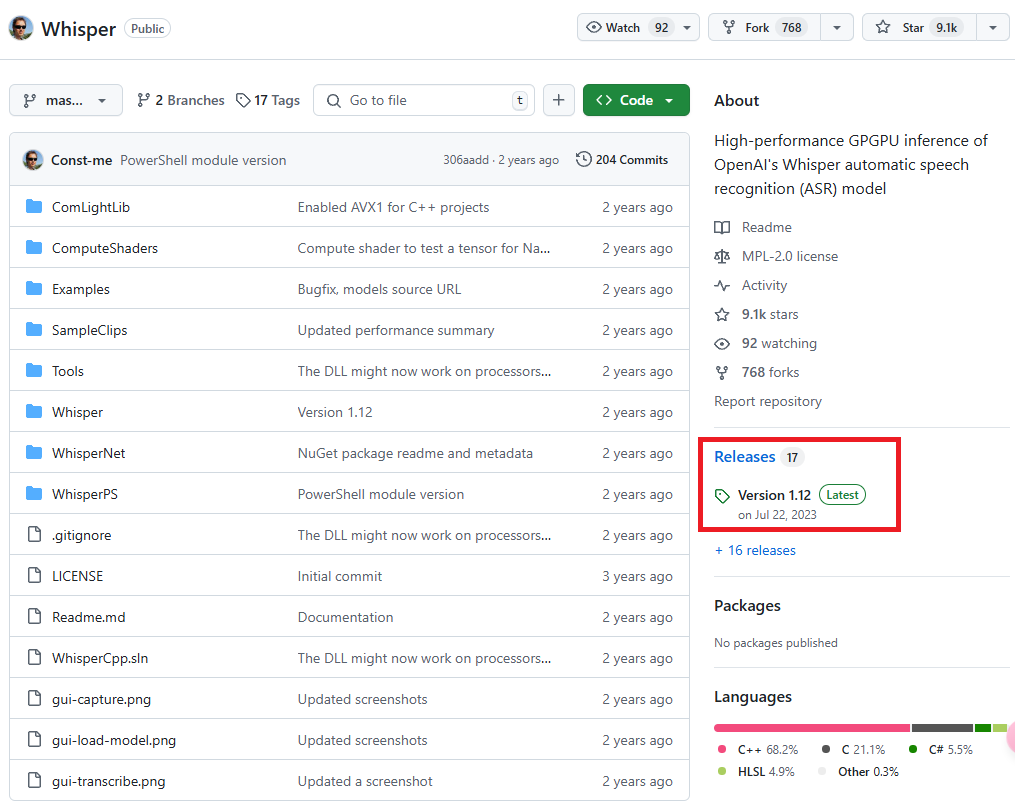
Click on the latest version in the "Releases" area on the right sidebar of the GitHub repository homepage. The current version is Version 1.12.
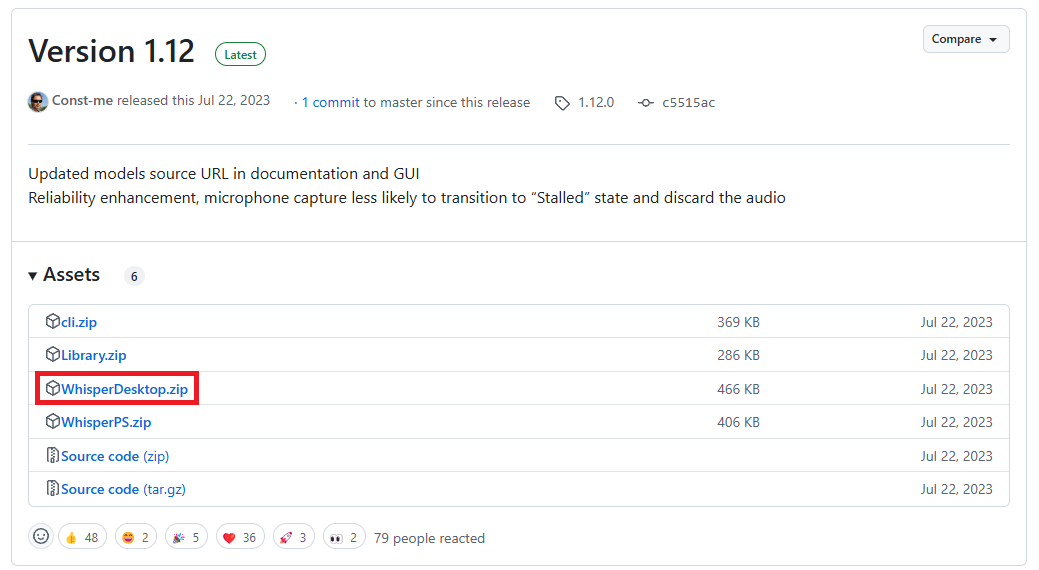
In the "Assets" area of the Release page, click on WhisperDesktop.zip (highlighted in the red box) to download it.
After unzipping, you will see the following three files:
- WhisperDesktop.exe: The actual executable file.
- Whisper.dll: The library file.
- lz4.txt: License statement.
Downloading the Model
Next, you need to download the model from the following website: Huggingface Whisper.
Model Sizes and Specifications
There are different sizes of models to choose from. Those with the .en suffix are English-only versions, and there are other extended models as well. The author of WhisperDesktop recommends using ggml-medium.bin because it is the model they primarily use to test the software.
| Size | Parameter Count | English-only Model | Multilingual Model | VRAM Required | Relative Speed |
|---|---|---|---|---|---|
| tiny | 39 M | tiny.en | tiny | ~1 GB | ~32x |
| base | 74 M | base.en | base | ~1 GB | ~16x |
| small | 244 M | small.en | small | ~2 GB | ~6x |
| medium | 769 M | medium.en | medium | ~5 GB | ~2x |
| large | 1550 M | N/A | large | ~10 GB | 1x |
How to Use
Run WhisperDesktop.exe.
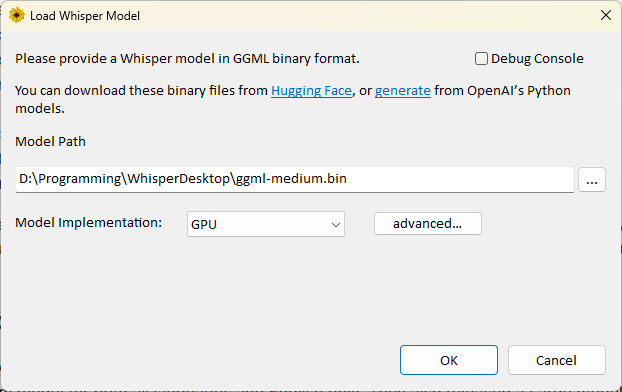
Specify the location of the downloaded model in the Model Path field.
Select
GPUfor Model Implementation (I don't know the purpose of the other options, so I won't explain them here).- If your graphics card is not detected correctly, you can click
advanced...to configure the details.
- If your graphics card is not detected correctly, you can click
Click
ok.For Language, select the primary language of the video (for Chinese, there is only a "Chinese" option; the program will automatically determine whether it is Traditional or Simplified, though I don't know the basis for its judgment).
If you want to translate into English, check Translate, although I often fail when testing with music.
For Transcribe File, select the audio or video file you want to transcribe.
For Output Format, you can choose the following formats:
- None: No output file.
- Text file (.txt): Plain text file.
- Text with timestamps: Text file with timestamps.
- SubRip subtitles (.srt): Common subtitle format containing timecodes and text.
- WebVTT subtitles (.vtt): Web video subtitle format.
Specify the output file location and filename.
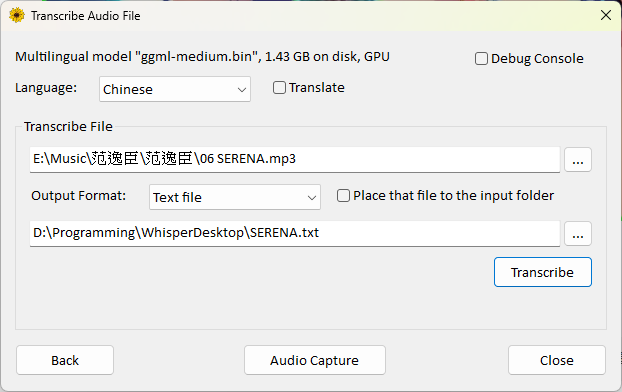
If you don't want to specify an output location, you can check
Place that file to the input folder.- This will save the output file in the same location as the input file.
- The filename will be the original filename plus the extension corresponding to the output format.
The "Audio Capture" feature can directly read audio input from a microphone, but my computer cannot detect my Bluetooth headset, so I will not explain this part.
Performance Test
Tested using a PNY RTX 4070 Ti Super 16GB Blower graphics card to convert a 5-minute and 16-second mp3 file:
- Using
ggml-large-v3.bintook 22 minutes and 01 seconds, and it did not always convert successfully (in actual tests, the file content was blank; it might require using other versions of the large model to convert correctly). - Using
ggml-medium.bintook only 11 seconds.
Tested using an i7-12700H integrated graphics (no dedicated graphics card) to convert the same 5-minute and 16-second mp3 file:
- Using
ggml-tiny.bintook 41 seconds. - Using
ggml-small.bintook 4 minutes and 19 seconds. - Using
ggml-medium.bintook 13 minutes and 5 seconds.
The accuracy of the transcribed text improves significantly as the model size increases.
Conclusion
Based on the test results and speed considerations, here are my personal recommendations:
- For users with a dedicated graphics card: It is recommended to use the
ggml-medium.binmodel. - For users with integrated graphics or older graphics cards:
- Daily use: Choose
ggml-small.bin. This is the smallest acceptable model; the accuracy of theggml-tiny.binmodel is too poor. - Important transcriptions: You can choose
ggml-medium.binand accept the longer processing time to obtain higher accuracy.
- Daily use: Choose
Change Log
- 2025-03-24 Initial document created.
- 2026-01-31 Added recommendation link, guiding to the new Faster-Whisper solution.