
Generating Audio Files with Google AI Studio
Since ChatGPT 5 was not very intuitive to use, I switched to the Gemini 3 camp after its AI models were released. Coincidentally, my new phone came with a Google One Pro subscription. In December, I also discovered that Claude Desktop added a built-in Claude Code feature on November 25, so I spent the entire month researching Claude Code and various Gemini features. Since Claude Code on Desktop still has many issues, my focus has primarily been on researching Gemini's capabilities.
Because my English is poor, I often mispronounced words and got corrected. I previously bought a book titled "The Software Engineer's English Usage Guide," but since I still didn't know how to pronounce the words after reading it, I wanted to have Gemini generate some common vocabulary for me and then feed it into Google AI Studio to generate audio files so I could listen to the pronunciations.
Introduction
When people talk about Google's AI tools, the first thing that comes to mind is usually Gemini. However, to generate audio files, you need to use another tool: Google AI Studio (hereinafter referred to as AI Studio). The following explains the positioning differences between the two (if you are already familiar with this, you can skip directly to Operating Procedure):
Tool Positioning and Functionality
- Gemini: A personal digital assistant with a more intuitive and user-friendly interface. It integrates with services like Google Drive and Gmail, making it suitable for daily tasks.
- AI Studio: A developer workstation that provides professional parameter control and advanced features like "Generate speech."
Billing Model (Billed Separately)
- Gemini: Available in a free plan; advanced features are subscription-based with a fixed monthly fee.
- AI Studio: Free quota + pay-as-you-go; there is a daily free quota during the development and testing phase.
Data Privacy Differences (Important)
- Gemini: By default, it uses conversation data to train its models. You must manually turn off "Activity History" to protect your privacy (though you will lose the conversation history feature).
- AI Studio: Data under the free quota is used for training. To ensure privacy, you must set up a billing project. In this mode, the data you input will never be used for training.
WARNING
If you are handling sensitive content or are concerned about privacy, it is recommended to set up a billing project in AI Studio.
Operating Procedure
After understanding the differences between the two, the following explains how to use the AI Studio "Generate speech" tool to convert text into realistic AI audio.
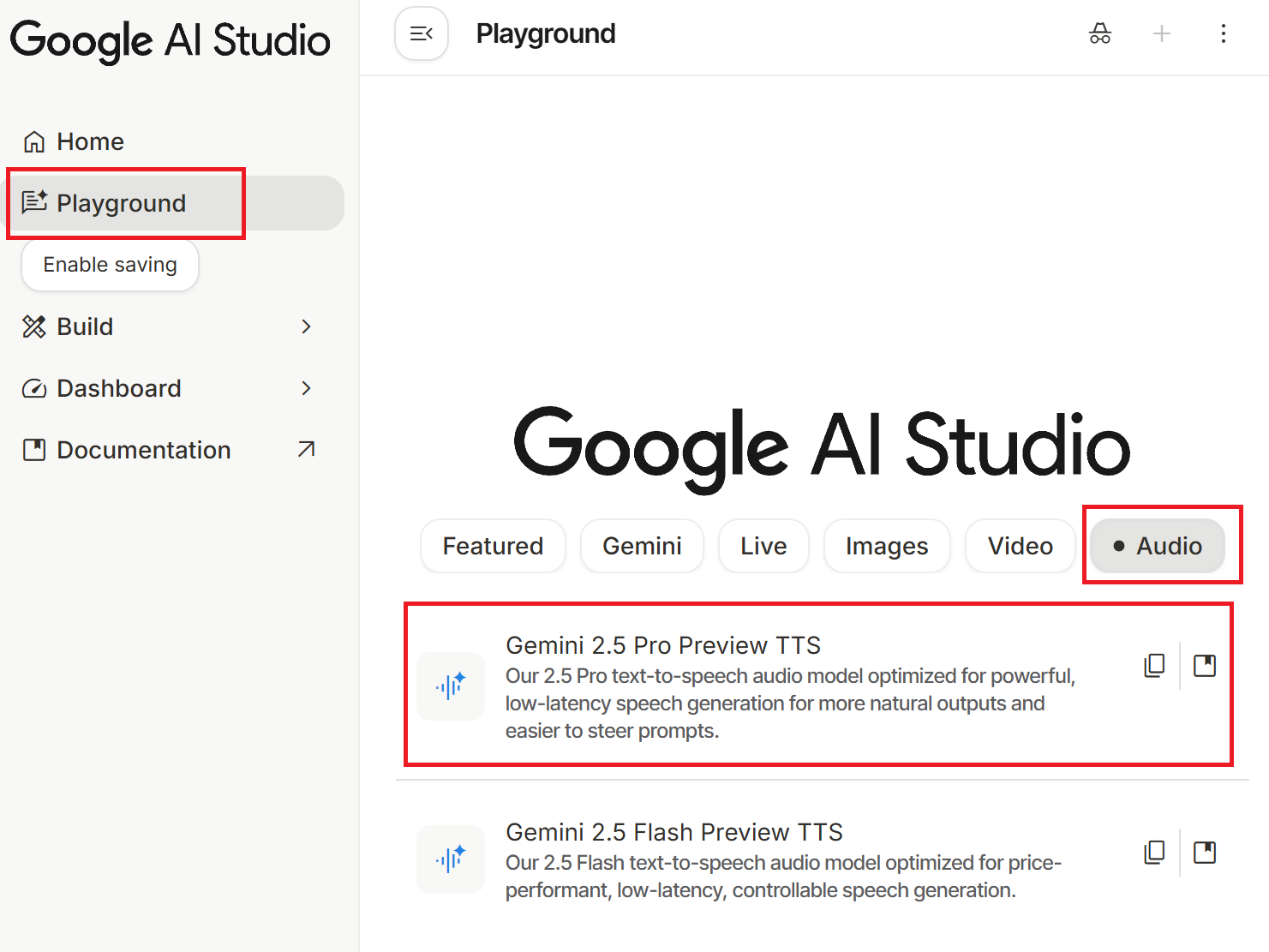
First, go to the Google AI Studio homepage (you must be logged into your Google account) → click "Playground" in the left menu → select the "Audio" category at the top → click "Gemini 2.5 Pro Preview TTS." You can also use this link to enter directly.
Basic Steps:
- Paste your prepared script into the Text input box on the left or center.
- Select a Voice in the settings field.
- Click the "Run Ctrl + ↵" button (or use the shortcut Ctrl + Enter), and the system will begin processing and generate the audio file.
- After listening, click the three-dot icon (⋮) on the right and select the download option to obtain the audio file in
.wavformat.

WARNING
If you generate a large amount of content in a short time, you may encounter the error: Failed to generate content: user has exceeded quota. Please try again later. This means your quota is exhausted; please try again later.
Parameter Settings Explanation
When using the tool, AI Studio provides several parameters to adjust the quality of the generated audio. They are explained below:
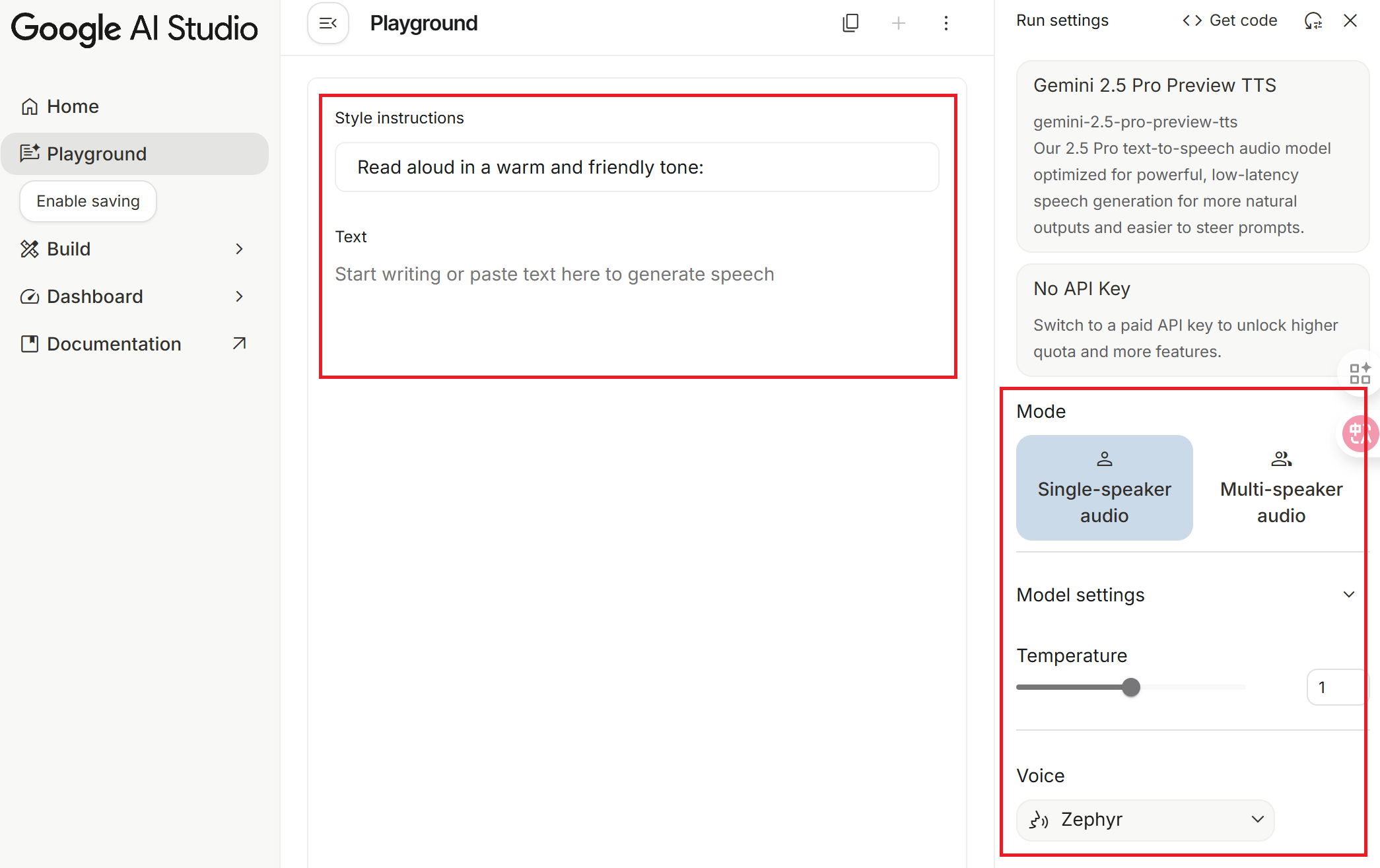
Mode
Select the appropriate mode based on your script requirements:
- Single-speaker audio: For single-person scripts.
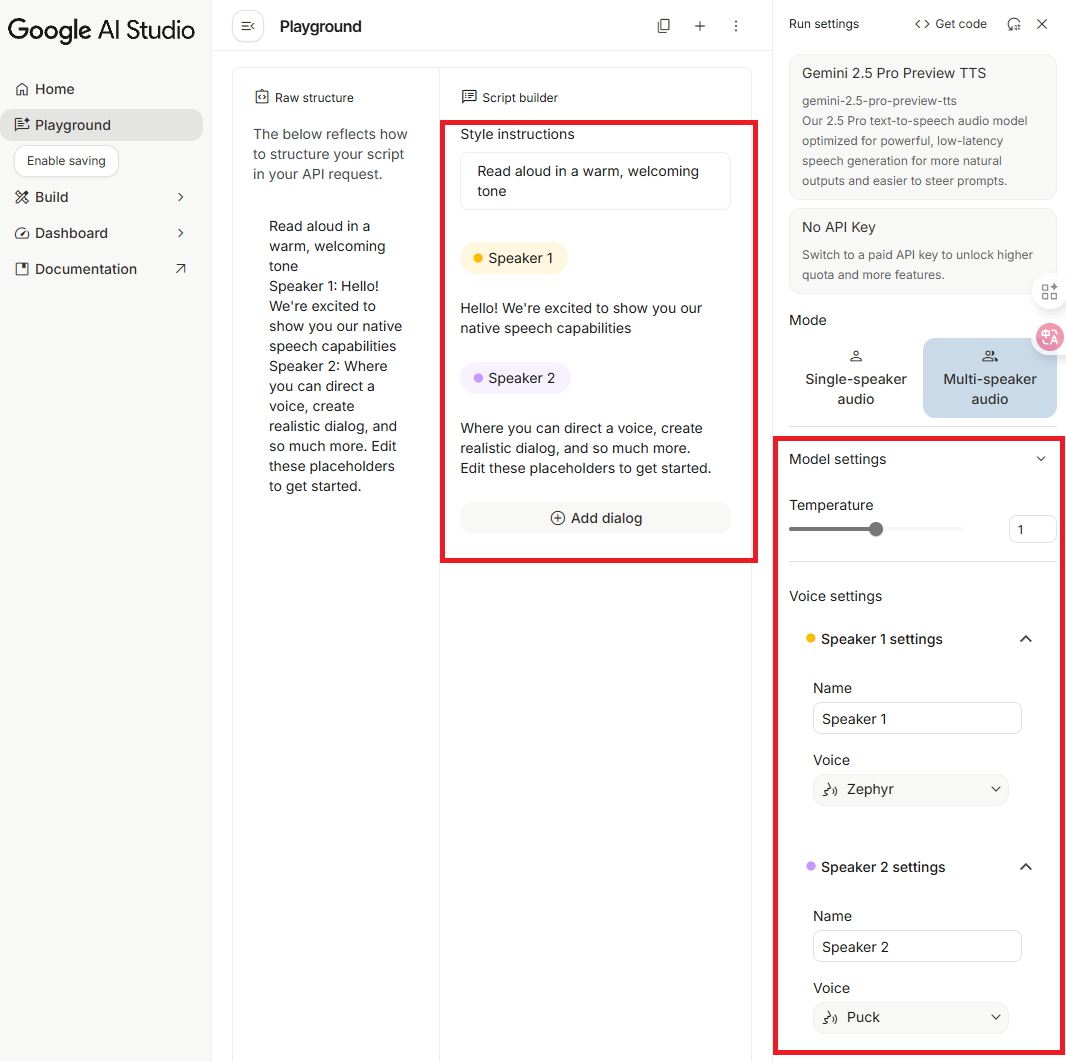
- Multi-speaker audio: For multi-person scripts (currently limited to two people; it is unclear if more will be added in the future).
Model settings
Temperature
The range is 0 to 2, with a default of 1. This parameter controls the randomness of the audio generation; you can think of it as the degree of freedom the director allows the actor.
I personally recommend keeping the default value of 1. Although theoretically, lower values are more stable, in practice, adjusting it downwards often leads to "normal audio at the beginning, followed by sudden silence or meaningless noise," and the trigger threshold is inconsistent (e.g., yesterday it triggered below 0.6, but today it started having issues below 0.7). Additionally, below 0.6, the tone tends to sound robotic. Unless you have the patience to repeatedly test the limits, it is recommended to keep the default value.
Voice
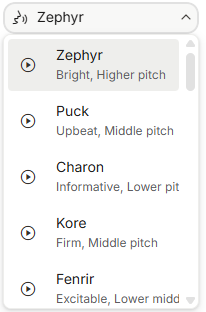
In addition to model parameters, the choice of voice also affects the final result. The system provides various voice characters, each with a description of its features (e.g., Zephyr is described as Bright, higher pitch). You can play a sample before selecting.
Style instructions
Through style instructions, you can further adjust the emotion, speaking rate, tension, and context of the audio. You can think of this as the script telling the actor how to perform the content.
Text
Enter the text script you want to convert to audio. It is recommended to note the following:
- Mixed Chinese/English Optimization: Adding a half-width space between Chinese and English words can help the AI switch languages and pronunciations more accurately.
- Paragraph Pauses: Empty lines between paragraphs represent pauses, but please do not have more than two consecutive empty lines. Testing shows that too many empty lines may mislead the model, causing the audio to end prematurely.
- Duration Limit: The limit for a single generation is about 11 minutes (I tested it for the past two days, and the limit was fixed at 10 minutes and 55 seconds, but today it reached 11 minutes and 05 seconds). If the content is just slightly over, you can try running it again, as the speaking rate varies slightly each time, and it might generate the full content on the next attempt.
TIP
Since Mainland Chinese terminology occupies a large portion of the training data, the system often automatically replaces Taiwan-specific terms with Mainland terms (e.g., replacing "堆疊" with "堆棧"). Although you can try inserting spaces between keywords (e.g., 堆 疊) to force the model to treat them as independent characters, they might actually be replaced by even stranger terms. There is currently no perfect solution for this, so I have personally chosen to give up on it.
Script Example
The following is a script example for one episode (in actual use, I produce multiple episodes, each containing over 40 words):
Style instructions
Please use a vivid, enthusiastic, and natural conversational tone. Keep the Chinese intonation soft and friendly, and use a standard American accent for the English.Text
Welcome to the first episode of Software Engineer English. Today's topic is Git version control. This is a tool that modern developers rely on every day. We will scan through everything from basic commands to team collaboration terminology. Please relax, prepare your ears, and let's get started.

Version Control
Version Control
Example: Git is the most popular distributed version control system.

Repository
Repository
Example: Please clone the repository to your local machine.

Initialize
Initialize
Example: Run git init to initialize a new repository here.

Although there are many Git commands, as long as you master these 50 core actions, you can handle 90% of work scenarios. It is recommended that you listen repeatedly, especially to the difference between Rebase and Merge. In the next episode, we will enter the world of .NET development.Conclusion
The biggest difference between Google AI Studio's "Generate speech" and traditional TTS is that it "understands and interprets" the script content rather than just reading it word-for-word. This feature has both pros and cons:
Suitable Use Cases
- Creating podcasts or audio content that requires natural, emotional vocal expression.
- Practicing before a presentation or report; by setting "Style instructions," you can hear how the AI interprets your content, which may be helpful for those who are not good at reading aloud or reporting (yes, that's me).
- Script rewriting or table reads, quickly generating different styles of performance.
Unsuitable Use Cases
- Situations requiring verbatim reading that is completely faithful to the original text, such as legal documents or technical specifications. For these, it is recommended to use traditional TTS tools.
Changelog
- Initial document created.