
How to Continue Browsing Websites with Insecure SSL Certificates
I often forget the thisisunsafe command, so I am writing this note.
Reasons for Insecure SSL Certificates
When you see an SSL security warning in your browser, it is usually due to the following reasons:
- The SSL certificate is self-signed rather than issued by a trusted Certificate Authority (CA).
- The SSL certificate has expired.
- The certificate does not match the website's domain name.
- Your browser does not trust the organization that issued the certificate.
- The certificate is a test certificate used in an internal development environment.
These warnings are a security mechanism of the browser to alert you that the current connection may not be secure.
Methods to Bypass SSL Warnings in Chrome
Standard Situation
Normally, if you encounter a situation where the browser considers the SSL insecure, you can click "Advanced" and proceed to browse, as shown below:
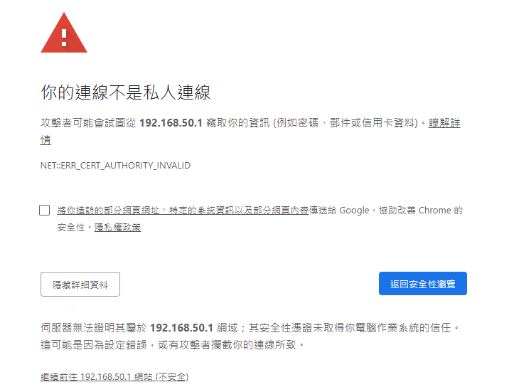
Steps:
- Click the "Advanced" option.
- Click the "Proceed to [website] (unsafe)" link.
- The browser will take you to the target website.
Special Situations (No "Proceed" Option)
Sometimes you may encounter a situation where there is no option to proceed, as shown below:
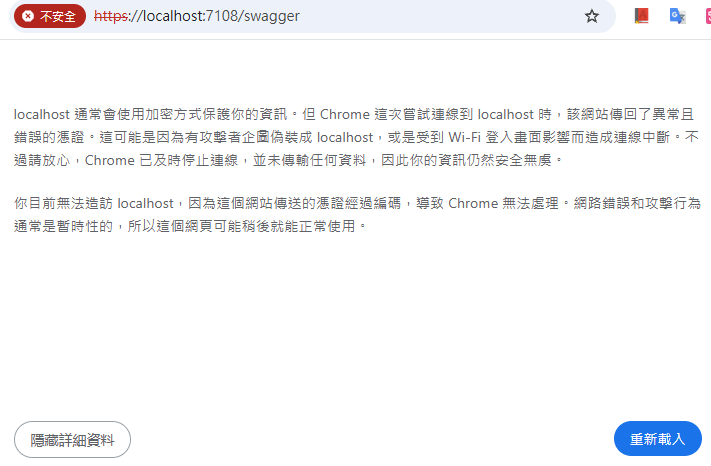
In this case, you can click on the Chrome browser window to ensure it is in focus, and then:
- Type
thisisunsafedirectly on your keyboard (you do not need to type it into any input field). - You will not see any visual feedback while typing, but once finished, the page will automatically redirect to the actual website.
Note: This method is a hidden feature and is only recommended for use when you are certain the website is safe, such as in an internal development or testing environment.
Change Log
- 2025-03-23 Initial document created.