
Writing Information to Windows Event Logs Using .NET Framework
TLDR
- Use the
System.Diagnostics.EventLogclass to write application messages to the Windows Event Viewer. - You must first check if the
Sourceexists; if not, useEventLog.CreateEventSourceto create it. SourceandLogNamehave a one-to-one relationship; oneSourcecan only correspond to oneLogName.- To change the
LogNameassociated with aSource, you must delete the old source and create a new one, and you must restart the computer for the changes to take effect. - After adding a custom log, you must reopen "Event Viewer" to see the log in the interface.
EventLog Core Concepts
In .NET Framework, System.Diagnostics.EventLog is the primary class for handling Windows event logs. When developing, pay attention to the following two parameters:
- Source: Identifies the application name. Before writing, you should use
EventLog.SourceExists(source)to check for its existence; if it does not exist, you must callEventLog.CreateEventSource(source, logName)to create it. - LogName: Specifies the log category to which the event is written. The same
Sourcecan only be associated with a singleLogName.
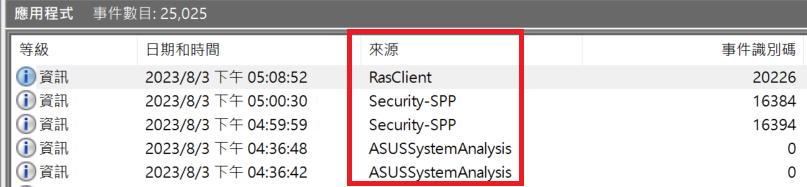
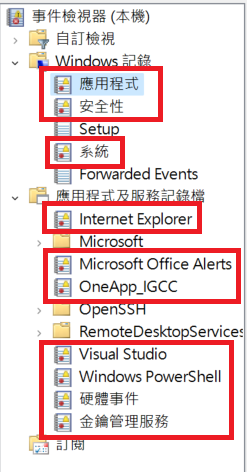
Writing to the Event Log
When you might encounter this: When an application needs to write execution status or error messages to the system log for subsequent monitoring.
Basic Writing Example
string source = "MySource";

// Check if Source exists, create it if it doesn't
if (!EventLog.SourceExists(source)) {
    // LogName can be 'Application' or others
    EventLog.CreateEventSource(source, "Application");
}

// Write message
EventLog.WriteEntry(source, "MyMessage");

// Alternative approach
using (EventLog log = new EventLog()) {
    log.Source = source;
    log.WriteEntry("MyMessage");
}Execution result: 
TIP
The WriteEntry() method supports EventLogEntryType and EventID parameters, which can be used to define the event level (e.g., Error, Warning, Information) and the event identifier.
Custom Log Name
If you need to write events to a custom log, you can specify a custom name for LogName.
string source = "MySource2";

if (!EventLog.SourceExists(source)) {
    EventLog.CreateEventSource(source, "MyLogName");
}

EventLog.WriteEntry(source, "MyMessage");Execution result: 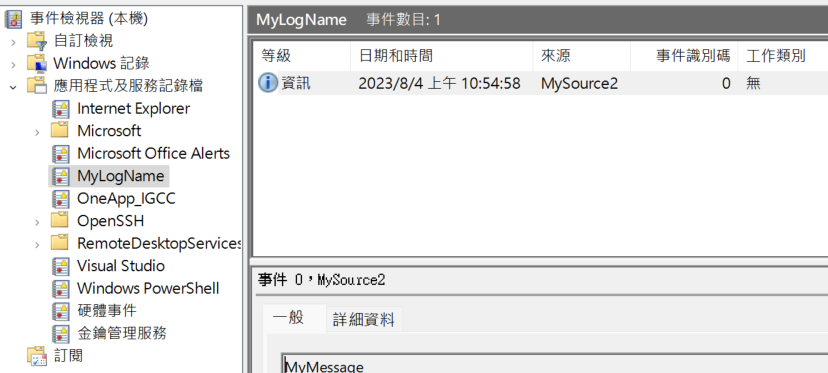
WARNING
After creating a new log, you must reopen "Event Viewer" to see the log in the interface.
Changing the Association Between Source and LogName
When you might encounter this: When you need to redirect an existing application source to a different log category.
To change the LogName bound to a Source, you must first delete the old Source and then recreate it.
string source = "MySource";
string logName = "MyLogName";

if (EventLog.SourceExists(source)) {
    string oldLogName = EventLog.LogNameFromSourceName(source, ".");
    if (oldLogName != logName) {
        EventLog.DeleteEventSource(source);
        EventLog.CreateEventSource(source, logName);
    }
} else {
    EventLog.CreateEventSource(source, logName);
}

EventLog.WriteEntry(source, "MyMessage");WARNING
According to MSDN documentation, if a source is already mapped to a log, you must restart the computer after remapping for the changes to take effect. Otherwise, messages will still be written to the old log.
Deleting a Log
If you need to remove a log that is no longer in use, you can use the following method:
EventLog.Delete(logName);References
Change Log
- 2023-08-04 Initial documentation created.